Instagram Insights are easiest to find from your profile or directly from the content you want to analyze. For account-level data, open your profile and tap Professional dashboard or Your dashboard. For a specific post or Reel, open it and tap View insights.
If you can't find those options for Insights, the most common reason is that your account is either private or not yet eligible for the current Insights experience. Once you're in, this guide shows where each type of Insight lives, what the current metrics mean, and how to compare your content without getting misled by a single number.
Key Takeaways
- Account-level: Open your profile and use the Professional dashboard or Your dashboard to see overall performance.
- Individual content: Open a post or Reel and tap View insights; Stories and Live videos have separate access paths.
- Current metrics: Instagram's reporting now centers on Views, Viewers, Interactions, and Accounts engaged, rather than the older Impressions/Plays terminology.
- Don't judge one number alone: Compare similar posts and look at performance relative to views, not just raw likes or comments.
Where to Find Instagram Insights (Mobile and Desktop)
On the mobile app
Step 1. Open your profile — tap your profile picture in the bottom-right corner.
Step 2. Open your dashboard — public personal accounts may see Your dashboard; professional accounts see Professional dashboard.
Step 3. Open Insights — from there, you can review account-level metrics such as Views, Interactions, followers, and content performance.
Step 4. Choose a date range or metric to drill into the numbers. Available options can vary by account and the current Instagram interface.
Step 5. For one piece of content, open the post or Reel and tap View insights. Stories have their own Insights view.
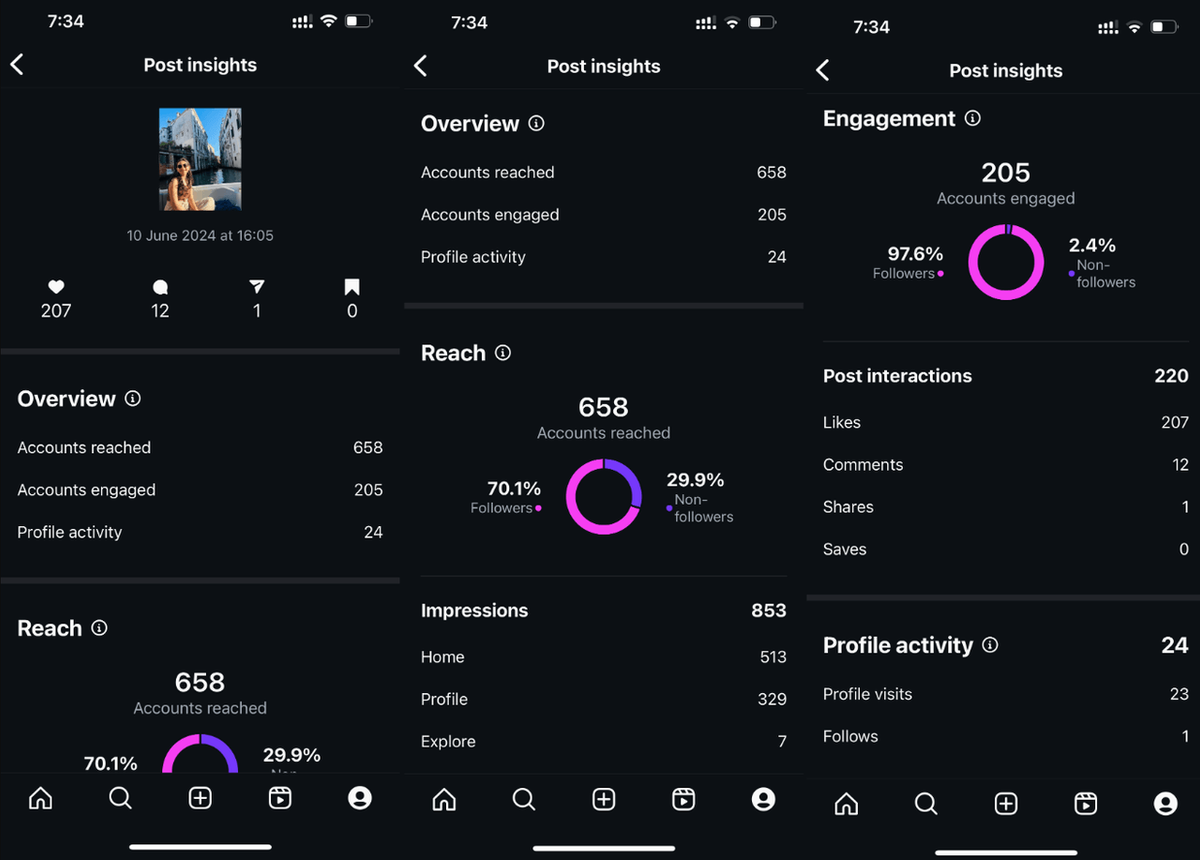
If you don't see a dashboard or Insights option, check whether your account is public and whether Instagram has enabled the current Insights experience for your account.
On desktop
Step 1. Go to instagram.com and select Dashboard from the left-hand menu.
Step 2. Open Insights — professional accounts can select Insights; Public personal accounts may see Your dashboard instead; Insights are not available for private accounts.
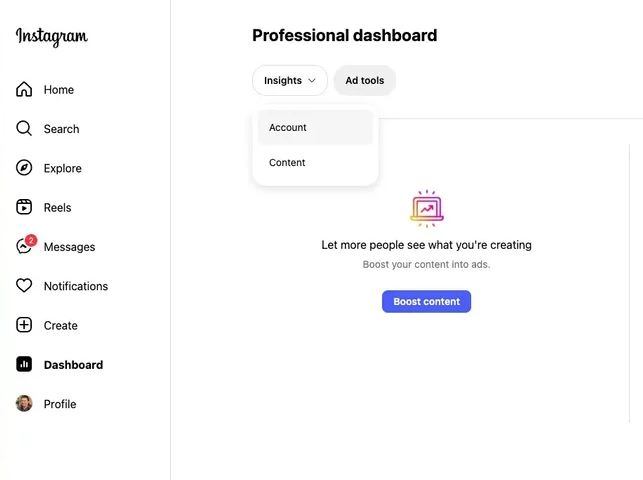
Step 3. Choose Account or Content to switch between account-level and content-level reporting.
Step 4. Set the date range using the available presets or a custom range. Current options include 7, 14, 30, or 90 days and the previous month, depending on the Insights view.
The desktop version is useful for reviewing account and content performance, but some metrics and content-level details may be easier to access in the mobile app.
Where | Best for | Main limitation |
Mobile app | Quick checks and individual post, Reel, or Story Insights | Some comparisons are less convenient on a small screen |
Desktop | Account/content review and longer reporting sessions |
Pro tip: Save your account-level numbers regularly. Instagram's account Insights are built around a 90-day reporting window, while individual content can remain available longer.
How to View Insights on a Post, Reel, Story, or Live
Account Insights show your overall performance. Content Insights let you see how an individual post, Reel, Story, or Live performed.
Posts
- Open your profile and tap the post you want to analyze.
- Tap View Insights beneath the post.
- Review the main metrics — Views, Interactions, and Profile activity.
- Open individual metrics for more detail.
Interactions can include likes, comments, saves, and shares. Profile activity covers actions people take on your profile after engaging with the post, such as profile visits.
Instagram makes post-level Insights available for up to two years after publishing.
Reels
- Open the Reels tab on your profile and select the Reel.
- Tap View Insights.
- Review the Reel metrics — Views, Watch time, Average watch time, and Viewers. Depending on your account and the current Instagram interface, you may also see Follows or Profile activity metrics.
- Compare Follows with Views if audience growth is your goal. A Reel with fewer views but more new followers may have been more valuable for growing your audience.
Views count plays or replays, while Viewers represents unique accounts that saw the Reel. Watch time measures total viewing time, and Average watch time shows the average time people spent watching.
Instagram's documented Reel Insights cover Reels published on or after May 14, 2021, with Insights available for up to two years.
Stories
To view the performance of an Instagram Story:
- Open the Story you want to analyze and access its Insights.
- Review Views, Viewers, Interactions, Accounts engaged, and Profile activity where available.
- For an older Story, use Instagram's Insights or content view to locate the Story and open its available metrics.
Story interactions can include replies, shares, sticker taps, and link taps, depending on the Story. Treat these as signals for comparing different Story formats rather than as a single measure of performance.
Stories disappear after 24 hours, but their Insights can remain available for up to two years.
Live
After a Live ends, open the saved Live or its available Insights to review the performance data Instagram provides. The metrics shown can vary by account and the current Instagram experience, so use the metrics displayed for your Live rather than assuming every broadcast has the same set.
The Account-Level Metrics, Explained
Metric | What it tells you | Use it for |
Views | Total times content was played or displayed, including repeats | Measure attention |
Viewers | Unique accounts that saw your content |
Two things to keep in mind:
- Audience demographics require enough data. If the 7-day view doesn't show demographics, try a 30- or 90-day range. Instagram requires at least 100 viewers in the selected window before showing demographic breakdowns.
- Some metrics are estimated and in development. Treat them as directional signals, not exact counts, and avoid drawing firm conclusions from small week-to-week changes.
Views count repeats. If one person watches your Reel three times, that's three views. Viewers count that person once.
How AllyHub Helps You Research Instagram Content
Instagram Insights tells you how your own account performed. But if you want to know what similar creators are publishing, which formats attract attention, or what a “good” public result looks like, you need a different data source.
That's where AllyHub can help. Instead of checking creator profiles and posts one by one, you can use its Instagram research workflow to collect public content and analyze patterns across posts.
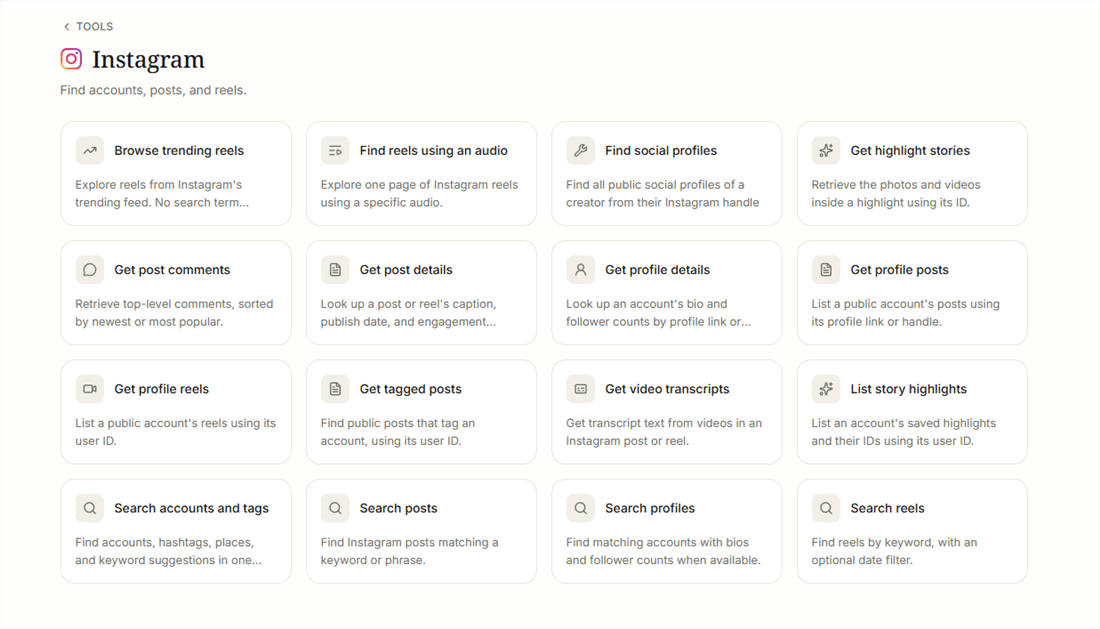
From Instagram Research to a Usable Benchmark
A simple workflow looks like this:
Search public Instagram content → collect relevant posts → compare formats and engagement → identify patterns → use the findings to guide your own content.
For example, if you're trying to understand whether Reels or carousels perform better in your niche, you can use public creator content as a comparison set rather than relying only on your own account history.
A 42-Post Benchmark
Using AllyHub's research workflow, we collected 42 public UGC-creator posts surfaced by keyword search on September 22, 2026: 15 Reels, 22 carousels, and 5 single-image posts published between April 21, 2025 and September 21, 2026. We recorded publicly visible views, likes, and comments.
[image]
This is a directional benchmark, not an industry average. Keyword search favors posts that already attract attention, public data doesn't include saves, shares, follower counts, or watch time, and view counts continue to change. Use it to understand scale and compare similar formats—not to rank creators.
What we measured | Median | Range | What it tells you |
Reels views | 304,510 | 33,329–606,049 | Search-surfaced Reels can skew high |
Likes per 1,000 Reel views* |
*Based on 12 Reels with usable public like counts.
What the Sample Shows
- Likes were more consistent than comments. Twelve of 15 Reels fell between 14 and 42 likes per 1,000 views, while comments ranged from 0.5 to 42.9. Extremely high comment rates often reflected a deliberate comment mechanic rather than organic engagement.
- Public like counts can be misleading. Seven posts showed exactly 3 likes despite having 55 to 22,915 comments, suggesting that the public like count was unavailable or not fully reported.
- Compare like with like. Benchmark Reels against other Reels, and carousels against other carousels. Different formats operate at very different scales.
The practical takeaway: use Instagram Insights to understand your own account, and use public-content research to understand the market around it. Views show exposure; format-specific engagement helps you judge whether that exposure translated into interaction.
How to Turn Insights Into Your Next Post
One reading session is trivia. A repeating loop is a strategy.
- Fix a window. Pick 30 days — the same 30 days you'll compare against next month. Instagram's 90-day cap means you can't rebuild this history later.
- Normalise to per-1,000-views. Divide likes and comments by views, multiply by 1,000, and write both down. Raw totals reward luck; rates reveal craft.
- Sort by format, not by date. A carousel will never out-view your best reel, and that's fine.
- Read the Follows line on your top three reels. Views show what the algorithm did; follows and profile activity show what the content did.
- Check the follower / non-follower split. Heavy non-follower engagement under Accounts engaged means the content travelled. Follower-only engagement means you served the people you already had.
- Write one sentence of intent for the next post, then compare it with the post before it — not with your all-time best.
FAQ
Can I export Instagram Insights as a CSV?
Not natively. Instagram doesn't provide a built-in Insights CSV export. For recurring reporting, you can either enter key metrics into a spreadsheet manually or use a third-party reporting tool connected to your account.
Why does Instagram use Views instead of Impressions?
Instagram uses Views as a unified exposure metric across posts, Reels, Stories, and live video. Views counts total displays or plays, while Viewers counts unique accounts. A large gap between the two can indicate repeat exposure, but Instagram no longer reports the old Impressions metric separately.
Does Instagram show you who viewed your profile?
No. Instagram provides aggregate profile activity and audience information, not a list of profile visitors. Tools claiming to identify individual profile viewers are not using an Instagram feature that the platform provides.
Why do my Instagram Insights numbers differ from a brand's report?
Check the date range and reporting date first. Public post counts can continue changing, while Insights may reflect a specific reporting window. Use the same date range and record when the data was pulled before comparing numbers.
How long should I wait before judging a new Instagram post?
Use 48 hours for an early directional read and revisit the post after about a week for a more stable comparison. Avoid making content decisions from the first hour alone.